Summary
- Start with one repetitive, low-risk workflow and record a baseline before anything changes.
- Use business accounts with two admins, multi-factor authentication and checked data settings.
- Clean the folders the AI will read and set permissions by role before anyone connects a drive.
- Test on 20 real cases, train people on their own work and go live with one team first.
In the small businesses I work with, AI projects usually stall in the setup, long after the tool is picked. Nobody administers the accounts, the shared drive is full of old files and the team got one demo and no training. A short implementation plan fixes most of it, and it’s the part of AI consulting for small business that pays off fastest.
The plan below is built for a team of 5 to 50 people and one workflow. It runs six weeks from first login to go-live. You get the timeline in one table, the concrete setup steps for each week, a budget table and a go-live checklist you can print.
Your Six-Week Timeline at a Glance
| Week | Focus | Done by Friday | Owner’s time |
|---|---|---|---|
| Week 1 | Pick the workflow | One workflow, one owner, baseline timing started | 3–4 hours |
| Week 2 | Accounts and admin | Business plan live, two admins, MFA on | 2–3 hours |
| Week 3 | Data clean-up | Source folders tidied, reference pack ready | 4–6 hours |
| Week 4 | Permissions and policy | Access by role, one-page policy signed | 2–3 hours |
| Week 5 | Testing and training | 20 real cases tested, team trained | 5–8 hours |
| Week 6 | Go-live | Checklist done, one team live | 2–3 hours |
Time estimates come from my client work with teams of 5 to 50 people and cover the person leading the project.
Six weeks is a comfortable pace for a business that keeps running while you implement. A team with a free afternoon each day can squeeze it into three. I don’t recommend going faster than that, because week 3 and week 5 depend on people outside the project answering questions.
Week 1: Pick One Workflow and Start the Baseline
Your first workflow should be boring. Good candidates repeat many times a week, involve a lot of reading or writing and do little harm if a draft comes out wrong. Inbox triage, meeting notes, first drafts of quotes and answers to common customer questions all fit. If you want a longer list, my rundown of AI use cases for small business covers sales, service and admin.
Next, name one owner. Pick the person who does the work today, so the owner knows the exceptions. The owner signs off on tests in week 5 and reads the exception log after launch.
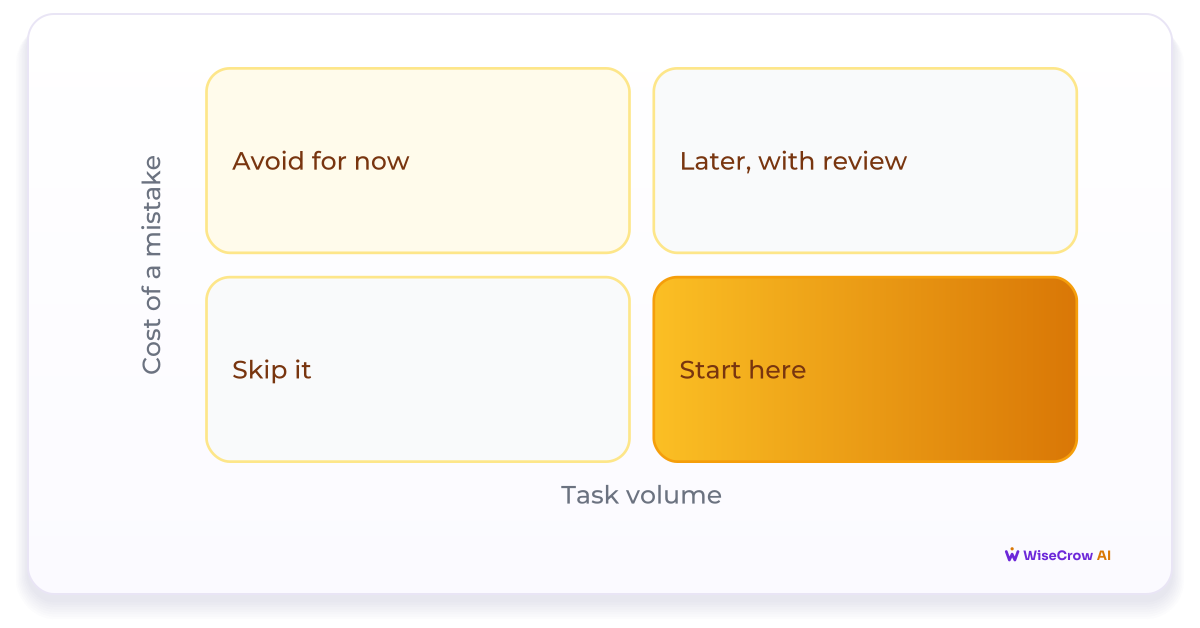
Then start the baseline. For two weeks, the people doing the task keep a tally next to the keyboard: how many times they did it and roughly how long each one took. Pull 20 recent examples and count the mistakes, such as a wrong price, a missed follow-up or a reply that needed a second email. Write one sentence that defines success, like “cut quote drafting from 25 minutes to 10 without more errors.”
Week 2: Set Up Accounts, Plans and Admin Controls
Most small teams I meet already use AI, mostly on personal accounts paid with personal cards. Week 2 moves everything onto company accounts you control. If you haven’t picked a tool yet, compare the cheap and free AI tools for small business first, then come back to these steps.
- Buy a business or team plan. Business tiers usually add an admin console, central billing and clearer terms on how your data is used. Read those terms before you pay.
- Make two admins. One is the project owner, the other is the business owner or office manager. One admin is a single point of failure.
- Turn on multi-factor authentication for every user, and use single sign-on if your email provider supports it on your plan.
- Check the data settings. Look at model training, chat history and retention. Write down what you chose and why.
- Connect only what the workflow needs. If you’re automating quote drafts, the AI needs the price list folder. It doesn’t need your whole drive or your accounting system yet.
- Put billing on a company card with an invoice email that more than one person reads.
The account step looks like admin busywork, and people want to skip it. Don’t. One accounting office I helped had every custom prompt and saved assistant in a former employee’s personal account. Rebuilding it took most of a week, and some of the work was gone for good.
Week 3: Clean the Data the AI Will Read
An AI assistant answers from whatever you give it. If the shared folder holds three price lists from three different years, it will quote from any of them. I’ve seen a draft go to a customer with prices from 2023 because the old file had the clearer name.
Spend this week on the folders and documents your workflow touches, and nothing else. Find the one current version of each file, move old versions into an archive folder the AI can’t see and give files names a stranger would understand. If customer data sits in those folders, decide whether the AI really needs it. Usually it doesn’t.
Build a Reference Pack
The single most useful file in a small business AI setup is a short reference pack. It is a folder or document with the facts and examples the AI should rely on:
- Your current prices, services and terms, with a date at the top
- A short tone guide: how you greet people, words you never use, how formal you are
- Ten good examples of the finished work, such as sent quotes or customer replies
- Answers to the 15 to 20 questions customers ask most
Keep it short enough that the owner can check it in ten minutes. A pack nobody can review goes stale fast, and stale facts are worse than no facts.
Week 4: Set Permissions and a One-Page AI Policy
Connected AI tools search with the permissions of the person using them. Anything a user can open, the assistant can find and summarize. Small businesses tend to have loose sharing, because everyone used to sit in one room.
Start with an access review of the folders you connected in week 2. Remove “anyone with the link” sharing on anything sensitive. Group people by role, such as office, sales and owners, and give each group only the folders it needs. Payroll, HR files and bank exports should sit in a folder that the AI connector can’t reach at all.
Then write a one-page AI policy. Keep it to a page so people read it. It should answer four questions in plain words: which data may never go into the tool, which outputs need a human check before they leave the building, who to ask when something looks wrong and what to do if someone pastes the wrong thing. Have everyone sign it, even if signing means replying “read and agreed” to an email.
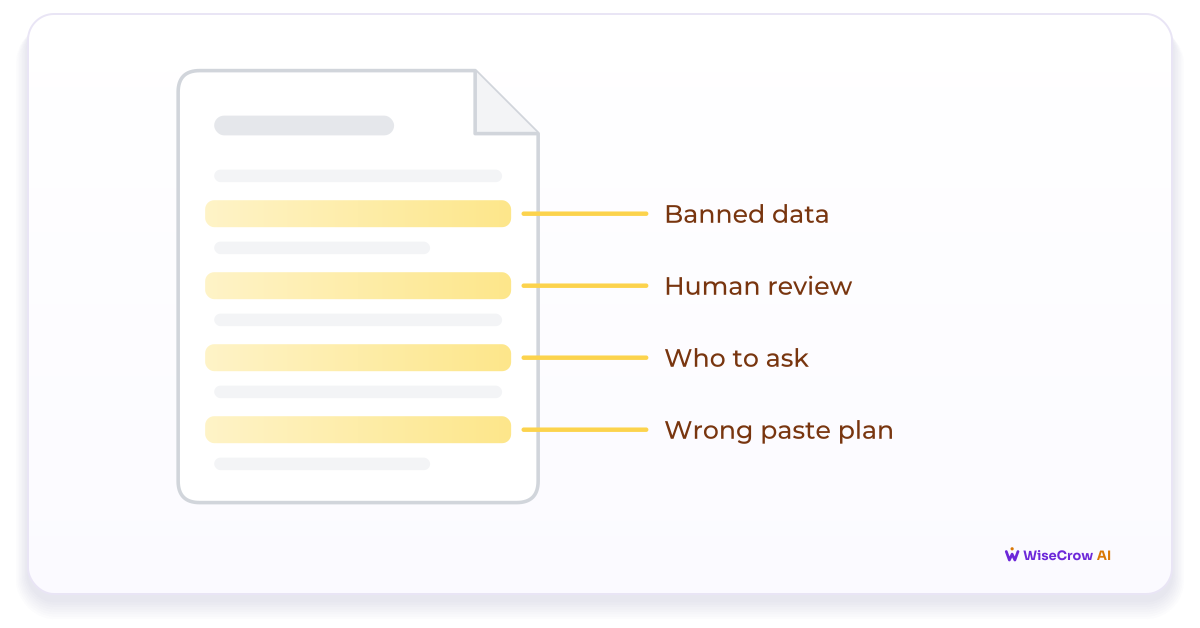
For the first month, every customer-facing output gets a human review. You can loosen the rule once the exception log shows the AI is reliable on your work.
Week 5: Test on Real Cases, Then Train Your Team
Week 5 needs the most hours. Block the time in calendars at the start of the project, or it will get pushed.
Run a Test Batch of 20 Real Cases
Take the 20 examples from your week 1 baseline and run them through the new setup. The owner scores each result as usable, needs editing or wrong. In my client work, I want no more than two or three wrong results out of 20 before go-live. If you get more, the cause is usually in the reference pack or the instructions, and you can fix it the same day.
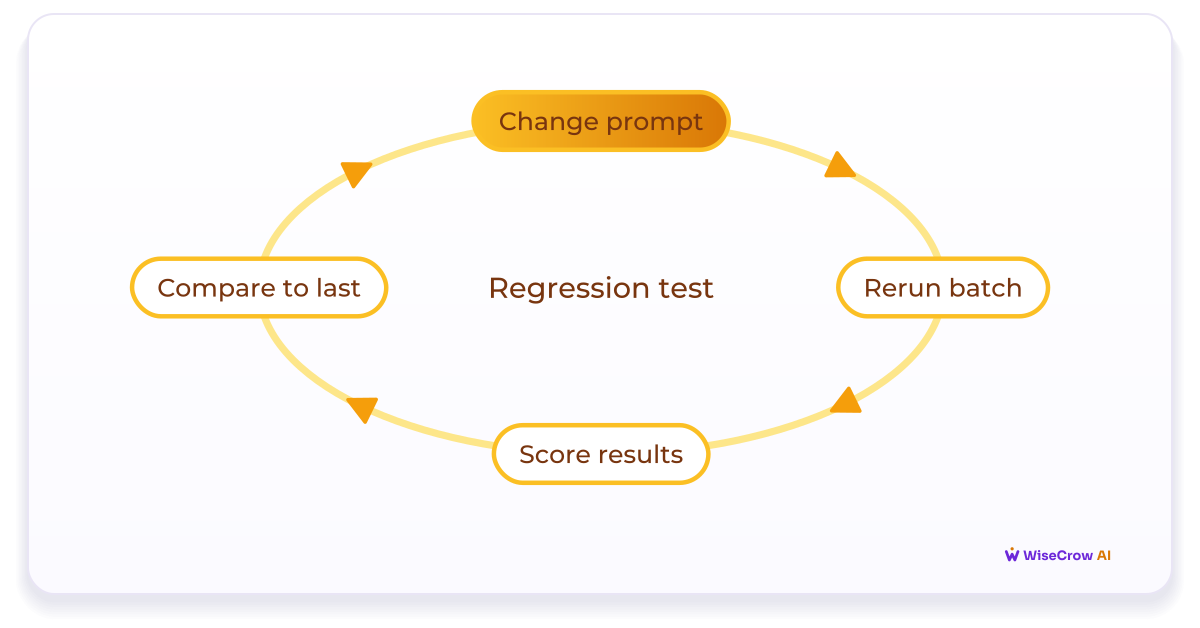
Keep the scored batch. It becomes your regression test: every time you change the prompt, the tool or the reference pack, run the same 20 cases again and compare.
Train in Short, Hands-On Sessions
Skip the slide deck. Run 45-minute sessions where each person uses the tool on their own real work while you watch. Give them a short prompt library, five to ten prompts that already passed the test batch, saved where everyone can find them.
Name one champion who isn’t the owner. The champion answers quick questions and notices who has gone quiet. In a team of 12, that’s often the person who already used AI on their own and enjoys helping.
Week 6: Go Live With One Team First
Launch on a Tuesday. Monday is busy and Friday leaves nobody around when the first problem shows up. If you have more than one team or location, start with the one whose members volunteered.
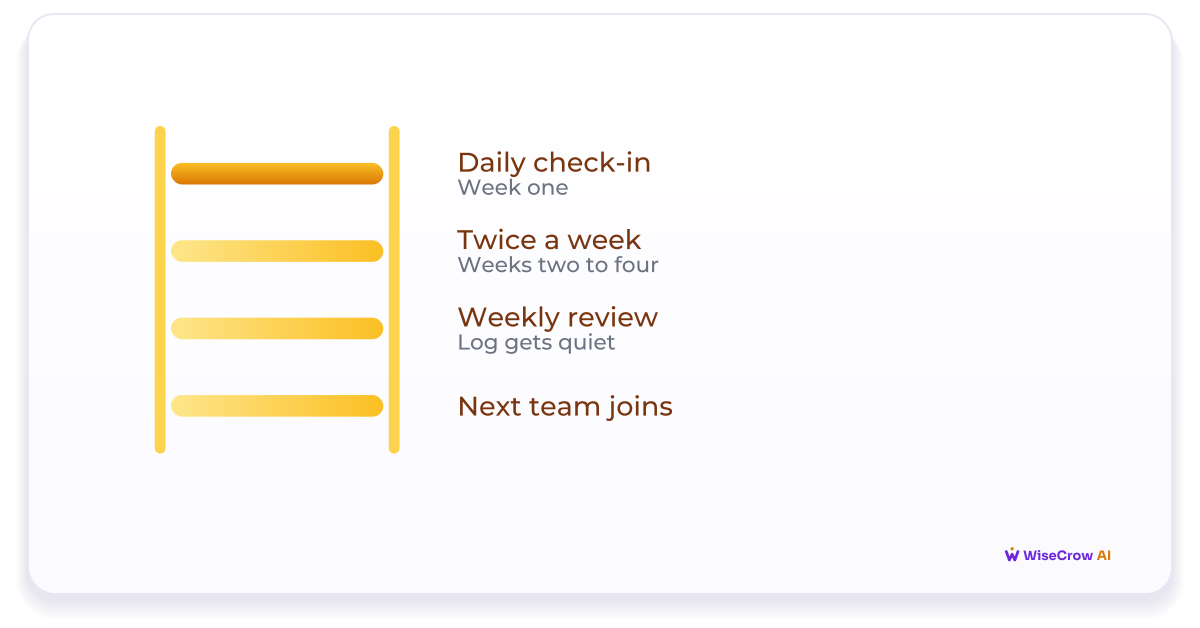
Hold a ten-minute check-in every day of the first week. Ask what worked, what broke and what felt slower than before. Everything that went wrong goes into an exception log: the date, what happened and what you changed. Keep the old way of working available for two weeks, so a bad day doesn’t stop customer work.
After the first week, drop to two check-ins a week. Most exceptions show up in the first ten working days. After that, the log gets quiet, and that’s your signal to invite the next team.
The Go-Live Checklist for Your First Workflow
Go through the list with the owner the Friday before launch. If an item isn’t done, move the date. A week’s delay costs less than a messy launch that the team remembers.
- Baseline recorded: volume, minutes per task and error count
- Business accounts for every user, no personal accounts in the workflow
- Two admins named and multi-factor authentication on for everyone
- Data, training and retention settings checked and written down
- Old files archived and the reference pack dated and approved
- Folder access reviewed and sensitive folders out of the connector’s reach
- One-page AI policy signed by every user
- Test batch of 20 cases passed and saved for retesting
- Everyone trained and the prompt library shared
- Exception log set up and daily check-ins in the calendar
- Old process available as a fallback for two weeks
What AI Implementation Costs a Small Business
Software is the line people ask about first, and it’s usually the smallest one. The real cost of a first workflow is time: the owner’s, the champion’s and the hours the team spends learning.
| Cost item | Typical range | Notes |
|---|---|---|
| AI assistant seats | About $20–$40 per user per month | Business or team plan, billed per seat |
| Automation or connector tool | $0–$100 per month | Free tiers often cover one workflow |
| Owner and champion time | 20–30 hours over six weeks | Usually the biggest real cost |
| Team training | 1–2 hours per person | Short sessions on their own work |
| Outside setup help | Depends on scope | Ask for a fixed quote up front |
| Ongoing review | 1–2 hours per week | Exception log and prompt updates |
General ranges for one workflow in a team of 5 to 50 people. Vendor prices change often, so check them before you buy.
Two cost traps show up again and again. The first is paying for seats nobody uses. Buy seats for the team that goes live first, then add more as other teams join. The second is a tool bought for one feature that a cheaper plan already covers. Before you upgrade, check what your current email, office and accounting tools already include, because many of them have added AI features to existing plans.
Check the Payback Before You Sign Up
Use the calculator with the numbers from your baseline. Enter the hours your team spends on the workflow each week, a cautious share the tool can take over and the monthly cost of all the seats you plan to buy. For a first project, I’d start with 30 to 40 percent and only go higher once the test batch shows it.
Will It Pay for Itself?
Move the sliders to match the work you want to automate and the plan you are considering.
If the result is close to zero, look for a bigger workflow or fewer seats. A first project that barely pays back is hard to defend when someone asks for the second one.
The First 30 Days After Go-Live
At day 30, sit down with the owner and repeat the week 1 measurement. Count the volume, time a sample of tasks and check 20 outputs for mistakes. Put the numbers next to the baseline on one page. Results that hold up in that comparison convince a business owner far better than enthusiasm.
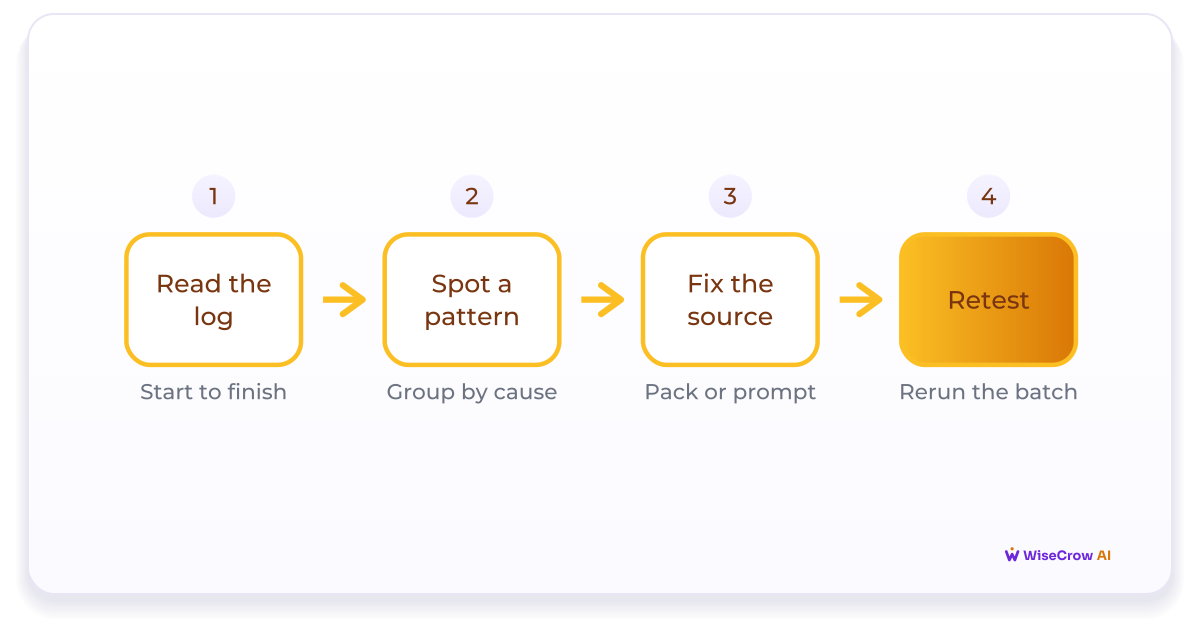
Also read the exception log from start to finish. Patterns jump out that daily check-ins miss, like one customer type the AI always gets wrong or a document format it can’t read. Fix the top two patterns, rerun the test batch and note what changed.
Then pick the next workflow. Reuse everything you built: the accounts, the policy, the reference pack and the test-batch habit. The second workflow usually goes live in half the time. To choose it well, a short plan helps, and my guide to AI strategy for small business shows how to build one on a budget.
How to Choose Between DIY Setup and Outside Help
If you start now, you’re still early. The U.S. Census Bureau’s business survey put AI use at 19.8% of U.S. firms in the period ending May 3, 2026, and at less than 20% for firms with four or fewer employees, against 37% for firms with 250 or more (Census Bureau). Being early gives you time to do it properly.
You can run the six weeks yourself when three things are true. The workflow runs on one tool, someone on the team is comfortable with admin settings and that person has three to five hours a week for the project. Many first workflows meet all three.
Outside help pays off in other situations:
- The workflow connects two or more systems, such as your inbox, CRM and accounting software.
- You handle regulated data, for example patient records or client financial information.
- Nobody on the team can free up the hours, and the project would stall in week 3.
- You already tried once, and the tool sits unused.
Some owners want the setup done for them. Others want someone to work alongside the team so the skills stay in the business. Both are fair choices. Decide which one you want before you talk to anyone, because it changes the scope and the price.
Questions About AI Implementation for Small Business
How Long Does AI Implementation Take for a Small Business?
For one workflow in a team of 5 to 50 people, six weeks from setup to go-live is realistic. The time goes into accounts, data clean-up, permissions, testing and training. A second workflow is usually faster, because the accounts, policy and habits are already in place.
What Should a Small Business Automate First with AI?
Pick a repetitive, text-heavy task with a clear owner and low risk if the AI gets it wrong. Inbox triage, meeting notes, first drafts of quotes and answers to common customer questions are typical first workflows. Leave anything that moves money or gives medical, legal or financial advice for later.
How Much Does It Cost to Implement AI in a Small Business?
Software is usually the smaller part. Business AI assistant plans tend to cost about $20 to $40 per user per month, and many automation tools have free tiers for one workflow. The bigger cost is the 20 to 30 hours of internal time it takes to set things up, clean data and train people.
Do We Need an IT Person to Implement AI?
Not for a first workflow on one tool. You need someone comfortable with admin settings who can spend a few hours a week for six weeks. Once a workflow connects several systems or touches regulated data, outside help or an IT partner saves you time and risk.
Is It Safe to Put Company Data into AI Tools?
It can be, on the right plan and with the right settings. Use business accounts, check the vendor’s data-use and retention terms, turn on multi-factor authentication and limit what each connector can see. Keep a one-page policy that says which data may never go into the tool.
How Do I Get My Team to Actually Use the AI Tool?
Train people on their own real work in short sessions, give them a small library of prompts that already work and name one champion they can ask. Usage tends to dip a few weeks after launch, so plan a short refresher before it happens.
How Do I Know If the AI Implementation Worked?
Compare the results after 30 days with the baseline you recorded in week 1: minutes per task, volume handled and error rate. If the numbers improved and the team still uses the tool without reminders, it worked. If not, the exception log usually shows why.
Sources
- U.S. Census Bureau, AI use by business size, Business Trends and Outlook Survey (May 2026): census.gov
Disclaimer: Disclaimer: Price ranges in this article are general estimates and change often. Check current pricing and data-use terms with each vendor before you buy. Nothing here is legal advice.
Did you find this helpful?
Thank you for your feedback.
Marlena leads the WiseCrow editorial team and works with our consultants to turn real client projects into practical guides on AI strategy, automation and governance. Before joining WiseCrow, she spent 12 years in B2B operations and SaaS content. She has since edited more than 400 articles on AI and automation and reviewed workflows from over 60 client projects. She is based in Austin, Texas.